




ABAP Development Tools (ADT) is a modern Eclipse-based IDE for SAP ABAP development. Follow this guide to install Eclipse and configure ADT for your SAP programming needs.
What is Eclipse IDE?
Definition
Eclipse is an open-source IDE that supports multiple programming languages through plugins. It serves as the foundation for ABAP Development Tools, offering code completion, syntax highlighting, and debugging features.
What is ABAP Development Tools (ADT)?
Definition
ABAP Development Tools (ADT) is an Eclipse plugin by SAP for developing ABAP programs. It provides a modern alternative to SAP GUI with enhanced productivity features.
Key Benefits of Using ADT
- Modern Development Experience: Enjoy a contemporary IDE with advanced editing capabilities
- Enhanced Productivity: Quick fixes, code templates, and intelligent code completion
- Integrated Tools: Built-in debugging, testing, and profiling capabilities
- Object-Oriented Development: Better support for ABAP Objects and modern programming paradigms
- Cross-Platform: Works on Windows, macOS, and Linux operating systems
Prerequisites Before Installation
System Requirements
- Operating System: Windows 10/11, macOS, or Linux
- RAM: Minimum 4GB (8GB or more recommended)
- Disk Space: At least 1GB free space for installation
- Java: Java Runtime Environment (JRE) will be included with Eclipse installer
- Internet Connection: Required for downloading Eclipse and ADT plugins
Step-by-Step Installation Guide: Eclipse & ABAP Development Tools
Download Eclipse Installer
Visit the Eclipse website and download the installer:
Click "Download" - the site will automatically detect your OS.
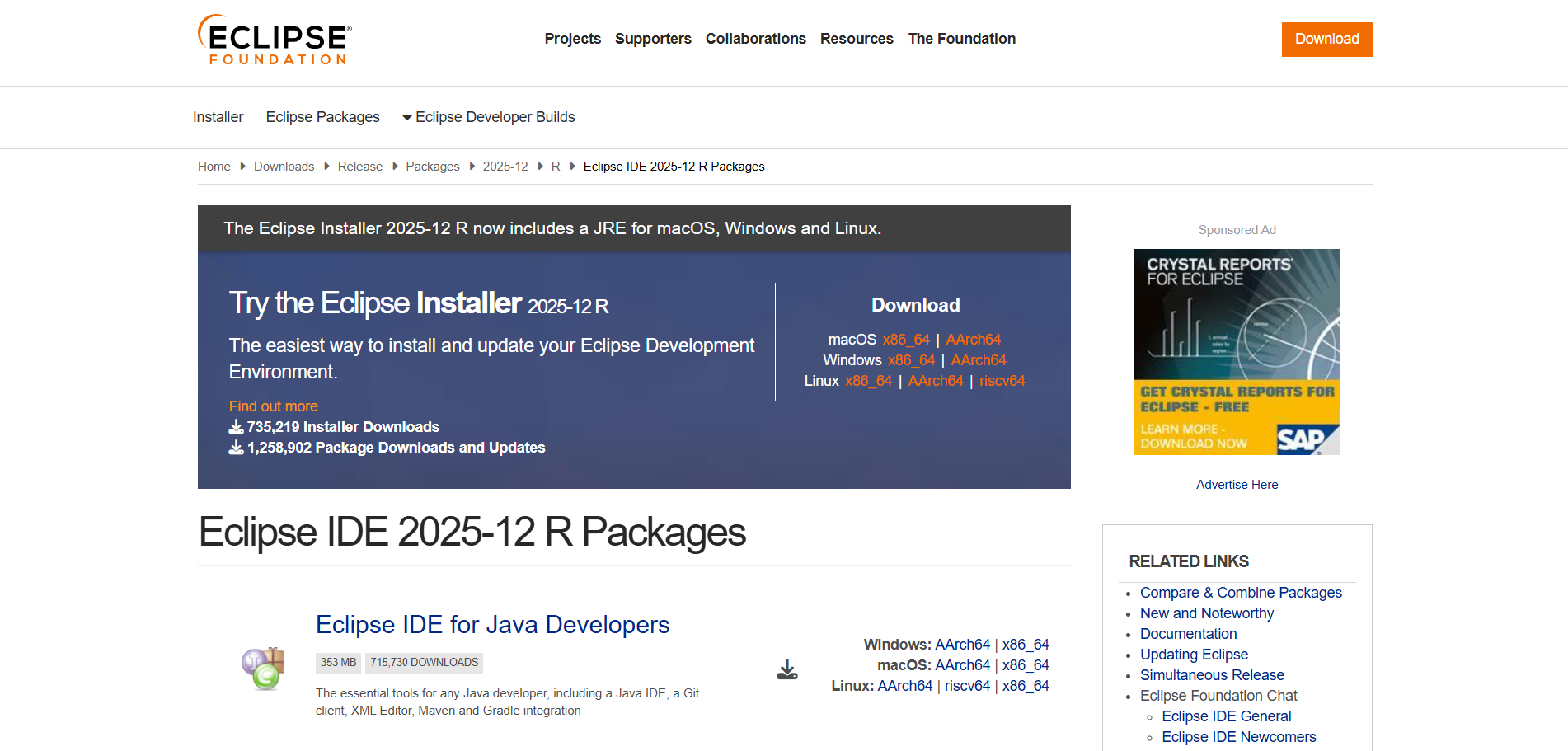
Eclipse Official Download Page
Run the Eclipse Installer
Locate the downloaded installer and run it. Allow security prompts if required.
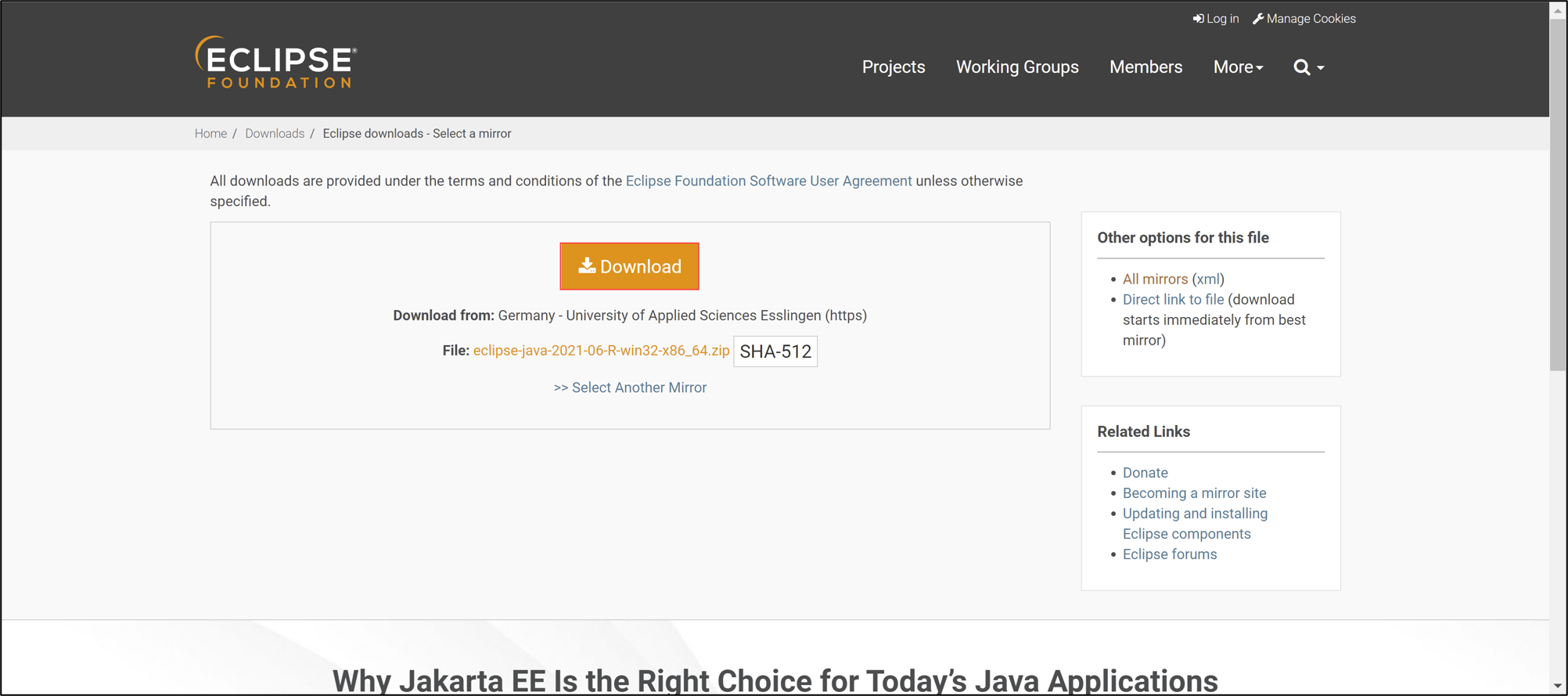
Eclipse Installer Welcome Screen
Select Eclipse IDE for Java Developers
Choose "Eclipse IDE for Java Developers" from the package options.
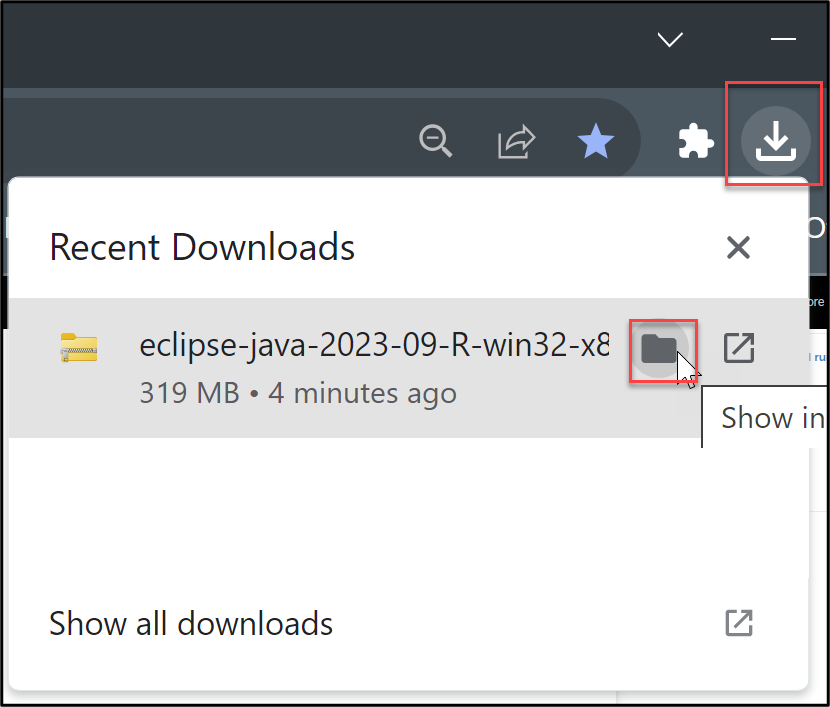
Choose Eclipse IDE for Java Developers
Configure Installation Settings
Configure your installation preferences:
- Installation Folder: Use default or choose custom location
- JRE: Will be automatically bundled
- Start Menu Entry: Check for easy access
Click Install to begin.
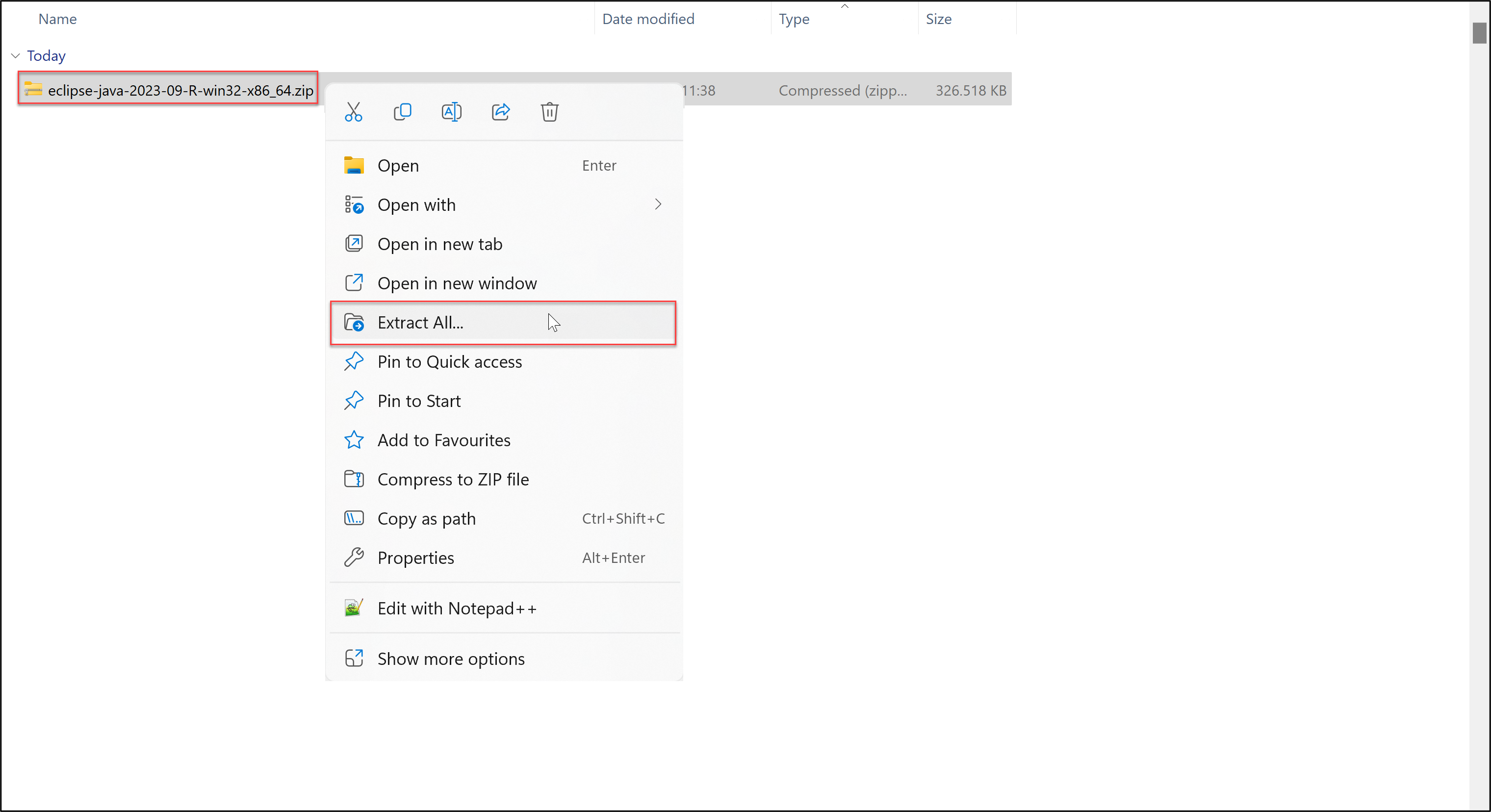
Installation Configuration Screen
Accept License Agreements
Review the Eclipse Foundation license agreement and click "Accept Now".
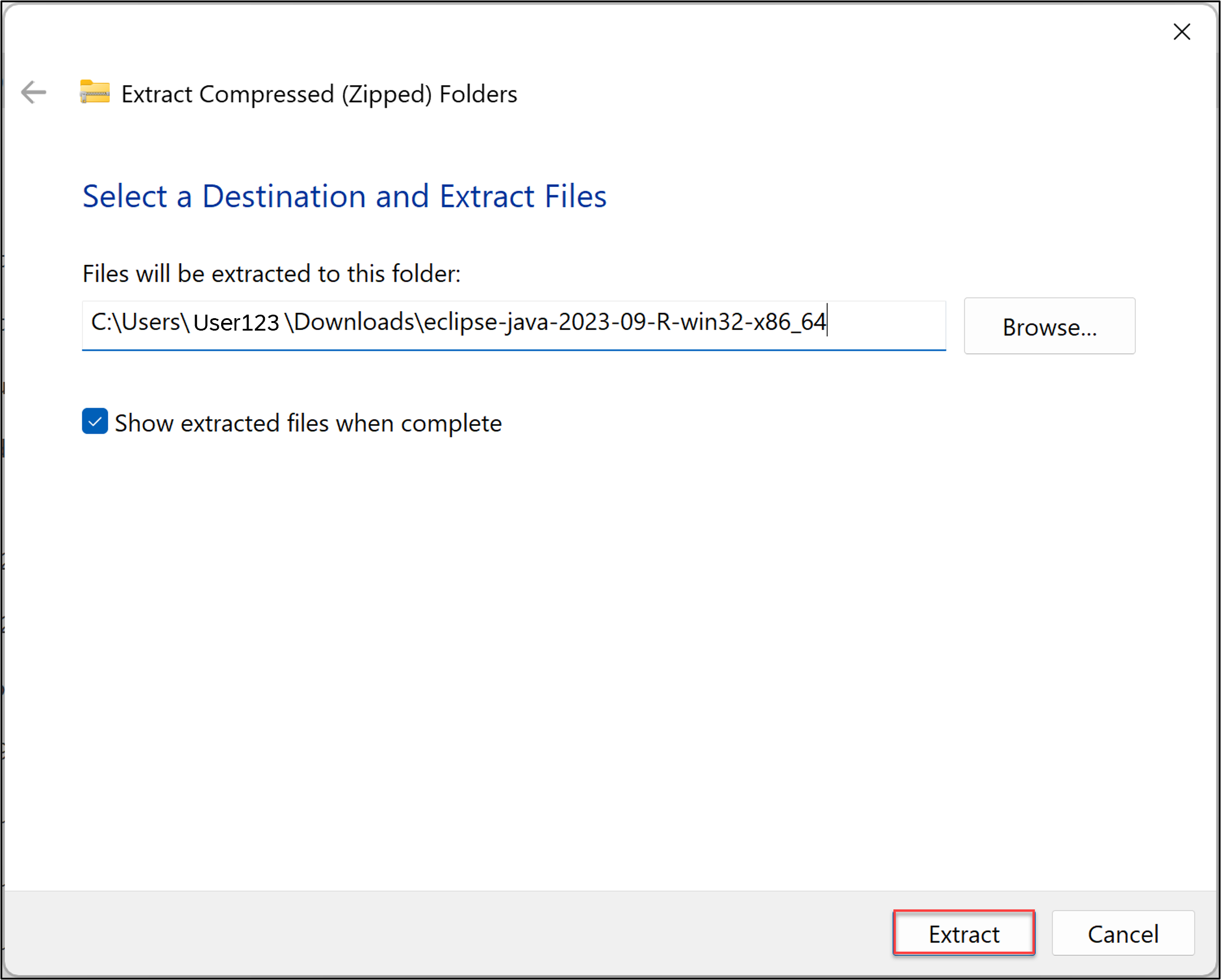
License Agreement Screen
Wait for Installation to Complete
The installer will download and install Eclipse with required components. This may take a few minutes.
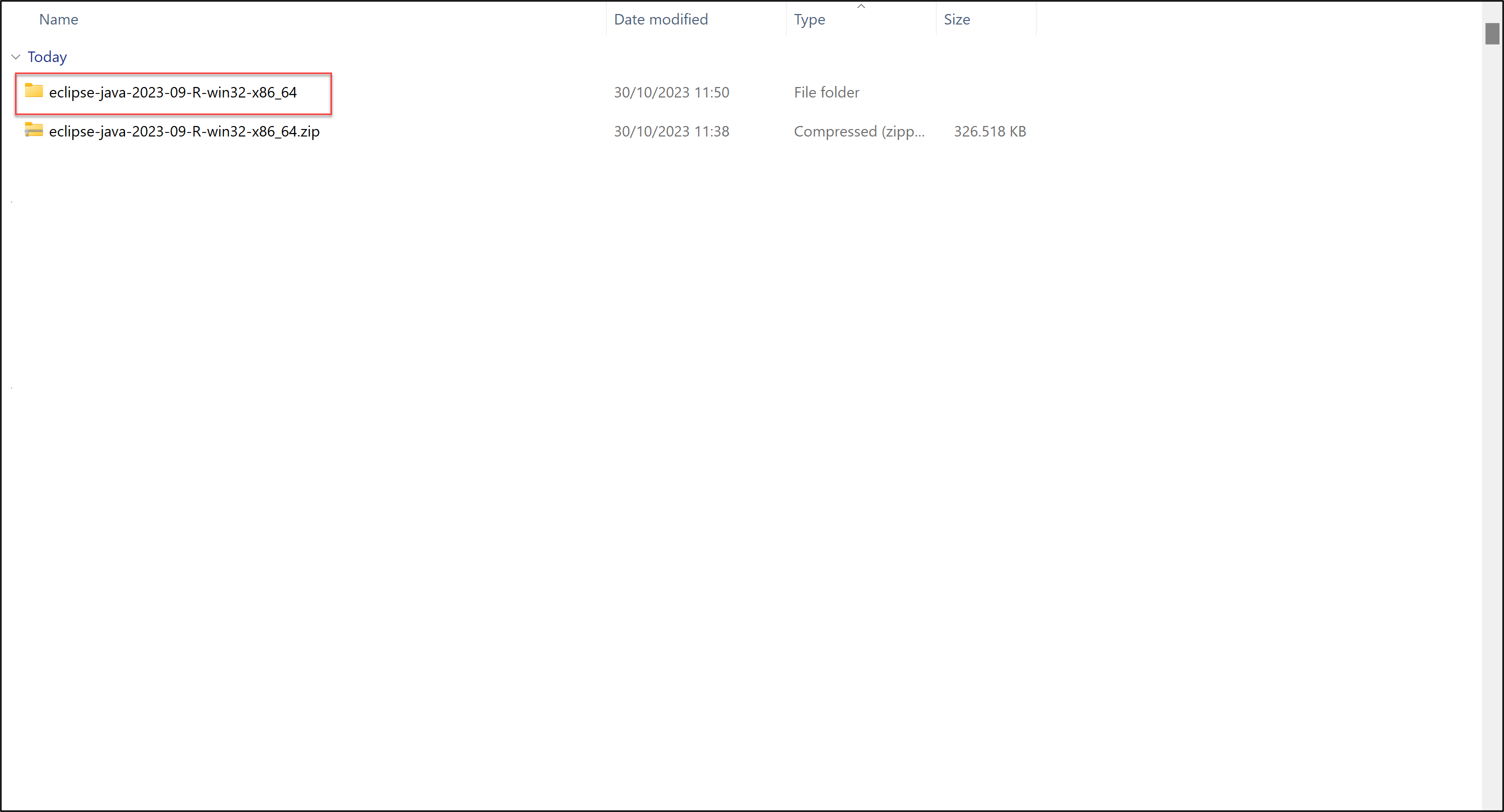
Installation in Progress
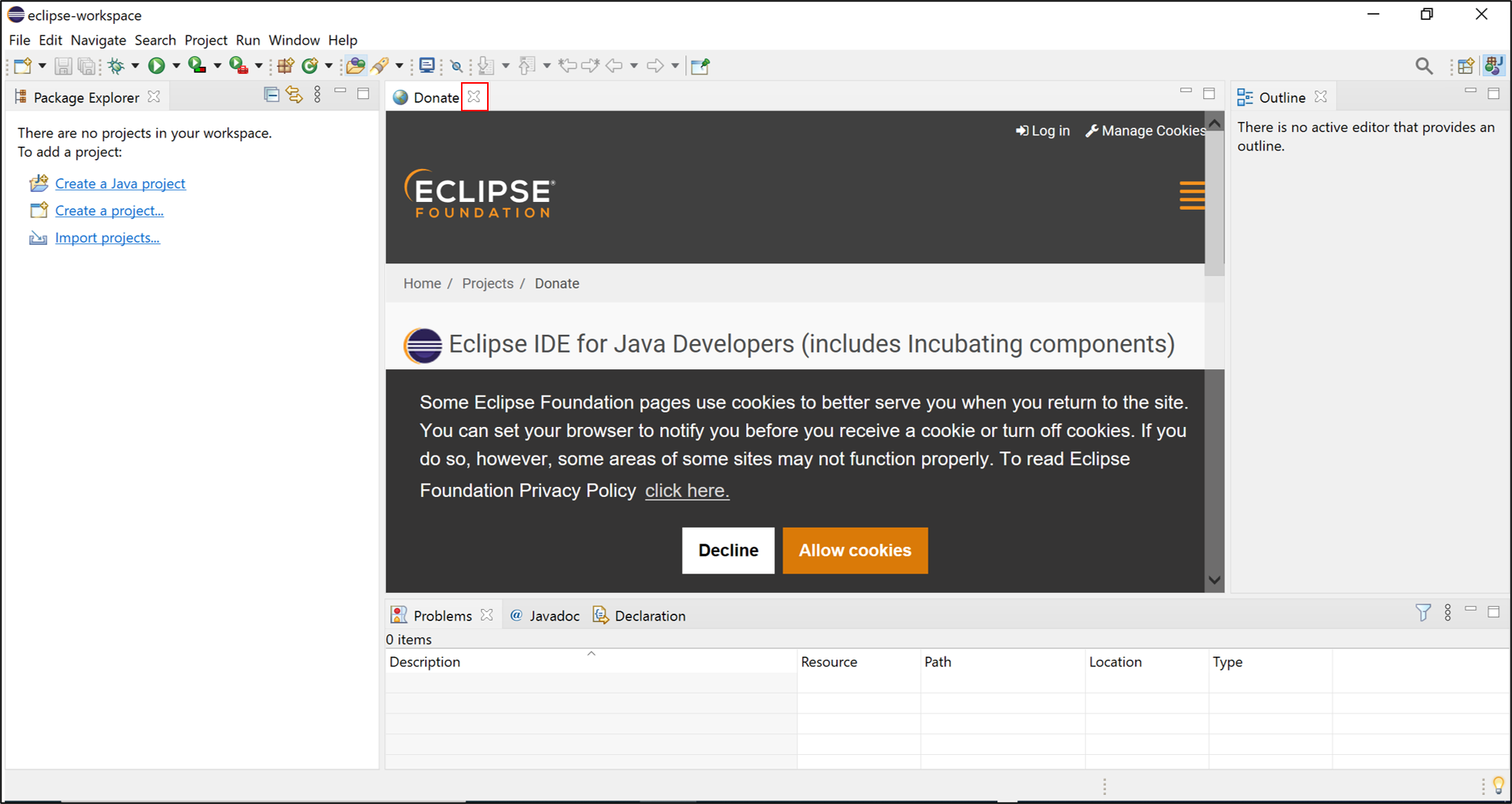
Launch Eclipse IDE
Click "Launch" after installation. Select a workspace directory for your projects.
- Use default workspace or choose custom path
- Check "Use as default" to skip this in future

Eclipse Workspace Selection
Install ABAP Development Tools Plugin
In Eclipse, go to Help > Install New Software.
Enter the ADT update site URL in "Work with" field:
https://tools.hana.ondemand.com/latest
Press Enter to load available tools.

Eclipse Install New Software Dialog
Select ABAP Development Tools
Select "ABAP Development Tools" from the list. Check the main ADT features:
- ABAP Development Tools - Core functionality
- ABAP Development Tools for SAP NetWeaver - Additional features
Click "Next" to continue.
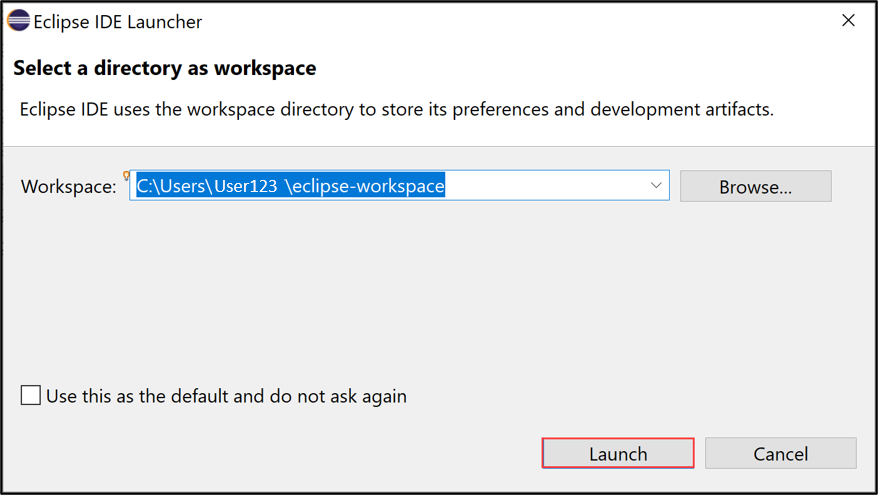
Select ABAP Development Tools for Installation
Complete ADT Installation and Verify
Accept license terms and click "Finish". Trust the SAP certificate when prompted.
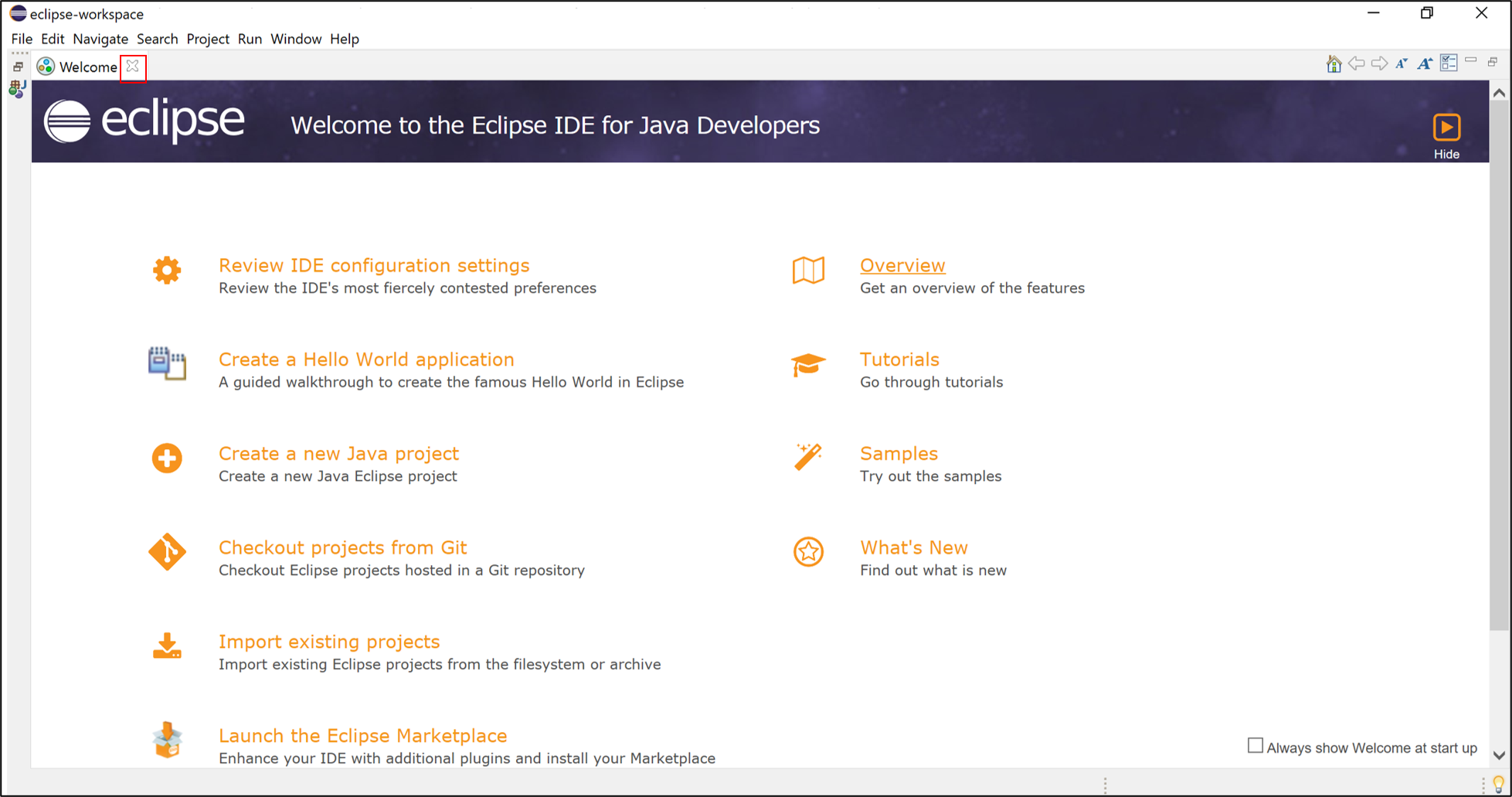
Complete ADT Installation
After restart, verify by going to Window > Perspective > Open Perspective > Other - ABAP perspective should be listed.
ABAP Perspective Available - Installation Verified
🎉 Congratulations!
Eclipse IDE and ABAP Development Tools are now installed. You're ready to start SAP ABAP development!
What's Next?
Next steps:
- Connect to your SAP system
- Explore the ABAP perspective
- Create your first ABAP project
- Learn ABAP Objects and CDS views
- Use debugging and testing tools
Common Issues and Troubleshooting
Common Issues
- Eclipse won't start: Check Java installation and environment variables
- Can't find ADT update site: Check internet and firewall settings
- ABAP perspective missing: Restart Eclipse or run eclipse.exe -clean

Mr. Ansar Ali is a globally certified SAP trainer with expertise in ABAP development and SAP implementation. He has trained numerous professionals in SAP technologies.